 Lumenkorn
Getting started
Install
- Open the latest release on GitHub.
- Download one of the two
.msifiles. They differ only in the language of the installer (en-USorde-DE); the app itself follows your system language and can be switched later. - Run the file. The installers are not code-signed yet, so Windows SmartScreen asks once: click More info, then Run anyway.
Lumenkorn runs on 64-bit Windows 10 and 11. A graphics card is not required but makes editing and the AI much faster. On Linux, Lumenkorn can be built from source.
First steps
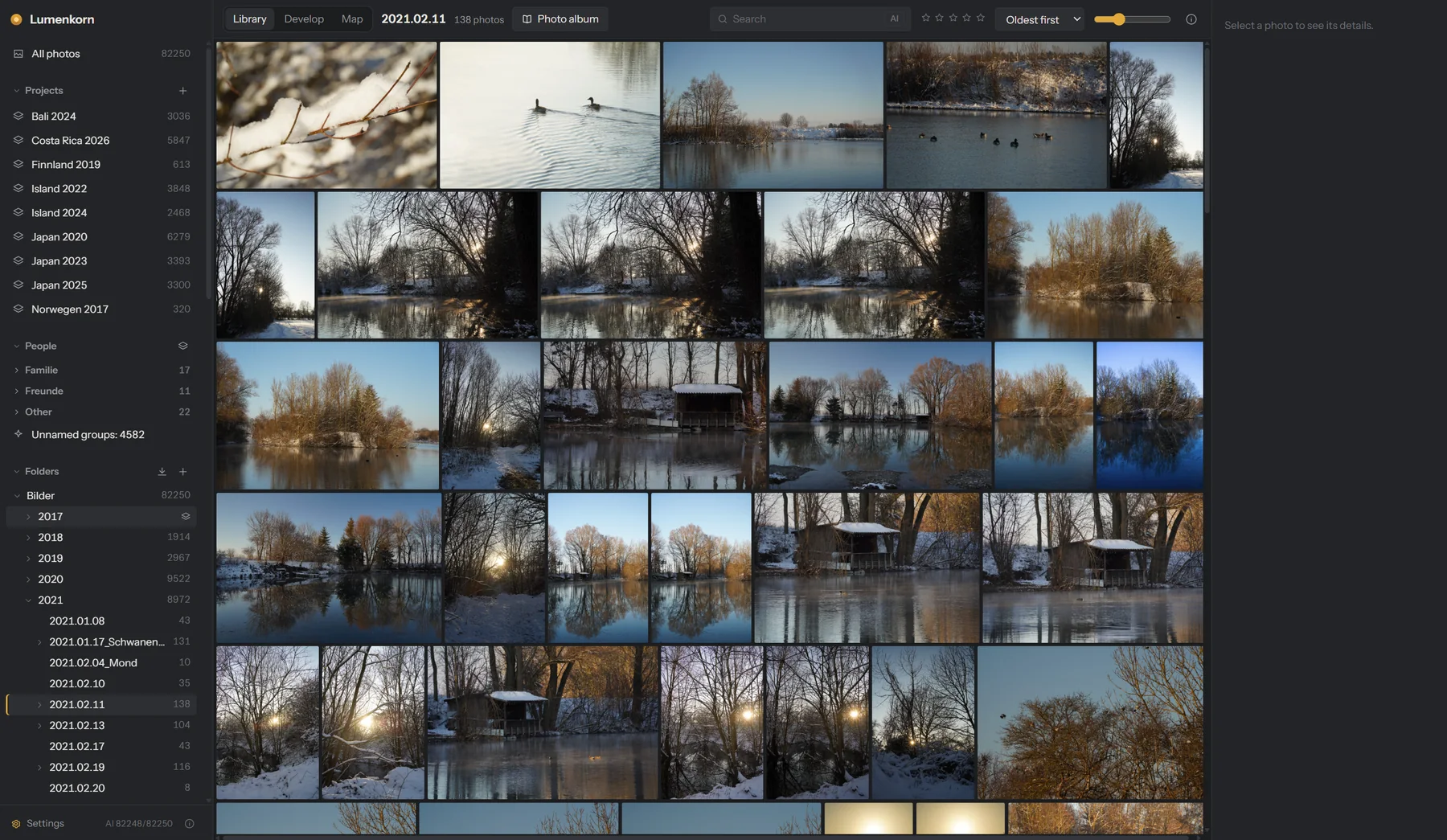
- Click + next to Folders in the sidebar and choose a folder with photos. Lumenkorn reads it in place and builds previews in the background.
- Browse with the arrow keys, rate with 1–5, pick with P and reject with X.
- Press D to develop the selected photo. Ctrl+U applies Auto, a good starting point.
- Export with Ctrl+Shift+E. By default the files go into an
Exportfolder next to the originals.
To copy photos from a memory card, use Ctrl+Shift+I or the arrow next to Folders. Projects (above the folders) gather folders that belong together, such as all days of a trip.
Set up AI
Open Settings → AI at the bottom left and download the models you want. Each feature can be set up on its own: keywords and search, AI masks, noise reduction and face recognition. After that Lumenkorn analyzes your photos in the background; the progress is shown next to the Settings button.
Under Settings → Graphics card you choose whether editing and AI use the GPU. For the AI on the GPU, Windows needs the Microsoft Visual C++ Redistributable; Lumenkorn tells you if it is missing.
Updates
Shortly after starting, Lumenkorn checks once whether a new version is out. If there is one, it shows what changed and asks. Install now downloads it, checks its signature, installs it and restarts. Your catalog and edits are kept.
Keyboard shortcuts
The most important defaults. Under Settings → Keyboard shortcuts every command can get a different or an additional key.
| Key | Action |
|---|---|
| 0–5 | Rating |
| P / X / U | Pick / reject / clear flag |
| Shift+X | Reject and go to the next photo |
| Enter / E | Show large; several selected: compare |
| D / G | Develop / back to the grid |
| M | Map |
| Z, mouse wheel | Zoom (fit ↔ 100 %) |
| \ | Before / after |
| R | Crop |
| Ctrl+U | Auto |
| V | Black & white |
| Ctrl+Z / Ctrl+Shift+Z | Undo / redo |
| Ctrl+Shift+C / V | Copy / paste settings |
| Ctrl+Shift+E | Export |
| Ctrl+Shift+I | Import from a memory card |
| Ctrl+H / Ctrl+M | HDR / panorama |
Your data and backups
Lumenkorn never changes your original photos. Your ratings, keywords and edits live in the catalog in the data folder:
%APPDATA%\io.github.drayprescot.lumenkorn\
Back up this folder together with your photos. The folder also holds the AI models and AI results, which can be downloaded and computed again if lost.
How Lumenkorn is made: a large part of the code was written with an AI assistant. A person decides what the program should do and whether a change is good enough, and every release is tried on real photos before it goes out. Bugs can still slip through, so keep a backup of your photos and the catalog.
Help
Found a bug or missing something? Please open an issue on GitHub. The changelog lists what changed in each version.